
How to Transfer WhatsApp from iPhone to Android (and What to Prepare First)
-
 by
by
- in Featured Technology

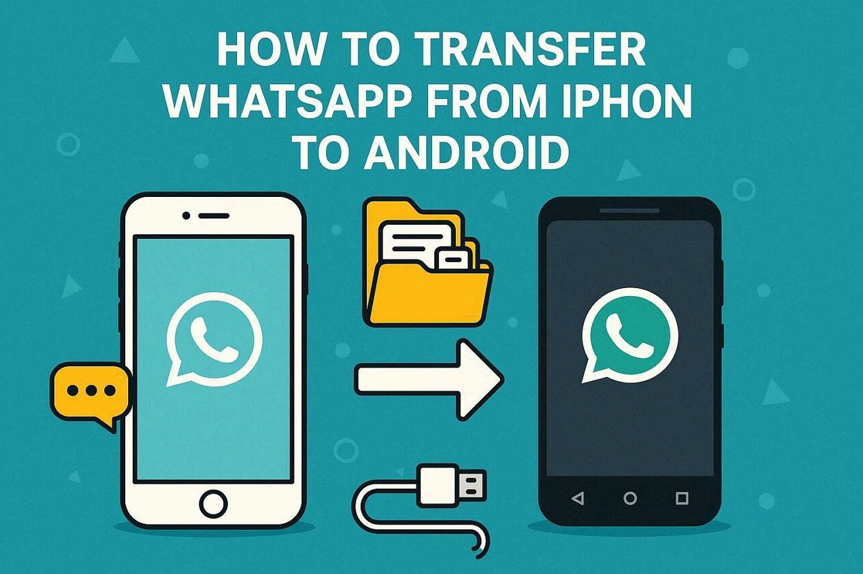
Although switching phones is common, losing WhatsApp chats can lead to data loss scenarios. Many users lose years of messages, photos, and stickers during the migration. This happens because iPhones and Androids store data in different ways that clash. Dedicated tools like Dr.Fone – WhatsApp Transfer provide a more streamlined approach.
Users can retain conversations and media efficiently. So, this guide explains how to prepare early so nothing important gets missed. It outlines standard procedures to ensure data remains intact. Understanding the process helps avoid errors when moving between systems.
Part 1: Migrating WhatsApp: iPhone to Android Made Easy
Migrating WhatsApp from iPhone to Android can be complex, but is manageable with the right approach. iOS and Android have different system setups for the data storage of apps and backups. iPhone uses locked folders and iCloud, whereas Android uses local spots and Google Drive. Yet, there is a good transfer tool that maps chats and groups from one to the other. It maintains the message’s order, and the account remains secure.
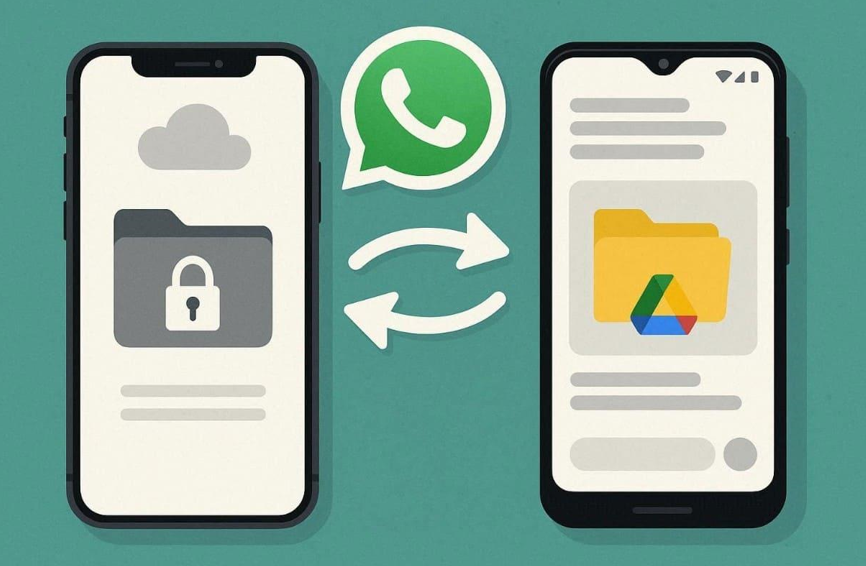
Storage paths differ, too, so the process shifts iCloud files into Android folders. Official rules limit moves, like needing the same phone number and fresh devices. Therefore, it is necessary to understand how to transfer WhatsApp from iPhone to Android by respecting these limits. When steps are carefully followed, cross-platform migration feels controlled and predictable overall. This understanding turns a complex change into a manageable phone switching task.
Part 2: What Causes Data Transfer Failures on Mobile Devices
Data transfer fails because phones depend on many conditions working together. Even small mistakes during setup can interrupt the migration process. Therefore, understanding these reasons helps users prevent errors. Below are common reasons explained before starting any transfer process steps:
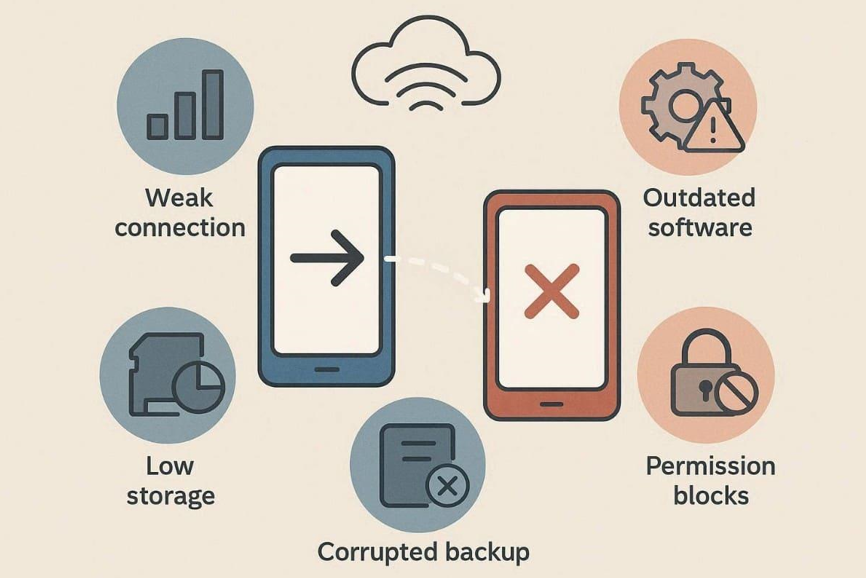
- Weak Connection: Unstable Wi-Fi or switching networks mid-transfer can break the ongoing migration. Cable disconnections or port issues also interrupt both wired and wireless data exchange.
- Low Storage: When the destination device lacks enough free space, files cannot be transferred. So, media, chats, or app data stop mid-way, leaving only partial backups behind.
- Outdated Software: Outdated system or app versions can be incompatible with transfer tools. It triggers errors during processes, like how to transfer Android phone to iPhone.
- Corrupted Backup: Corrupt backup archives make data unreadable for restoration. Moreover, broken files cause the receiving device to reject portions of transferred content.
- Permission Blocks: Restricted permissions stop apps from accessing required files or storage paths. Therefore, transfers may fail when access is denied during the process.
Part 3: Multiple Essential Steps to Switch Phones for WhatsApp
Switching phones works best when WhatsApp migration follows a clear order. Jumping ahead without preparation causes missing chats or failed verification. Each stage matters, like preparing the old phone and verifying restored messages, for success. The table below simplifies how to transfer WhatsApp from iPhone to Android through clear preparation:
| Action | Key Details | Reason |
| Prepare Old Phone | Update WhatsApp and ensure it opens correctly. | Guarantees all chats are ready for transfer. |
| Backup Chats | Use iCloud backup or the Chat Transfer tool. | Saves latest messages, media, and stickers. |
| Check Phone Number | Use the same number to receive SMS verification. | WhatsApp verifies identity during setup. |
| Check Resources | Confirm enough storage, internet, battery, and cables. | Prevents mid-transfer failures or incomplete backups. |
| Set Up WhatsApp | Install, verify the number, and choose restore or transfer. | Ensures chat history is correctly imported. |
| Verify Content | Check messages, media, and groups after transfer. | Confirms everything arrived intact and complete. |
Part 4: What to Expect After Transfer (Chats vs Media vs Stickers)
After transferring WhatsApp with the official method, the majority of chats and media are received intact on the new phone. Some things, such as call status updates or custom stickers, may not transfer completely. Missing items depend on transfer paths, storage, and phone systems involved.
So, it is necessary to understand these differences to keep the expectations of users realistic. The table below outlines what normally transfers, and what may need to be done manually:
| Content Type | Usually Transfers | May Not Transfer | Notes |
| Chats & Account | Individual chats, group conversations, message history, profile information, and basic settings | Call history, status updates, communities, and sometimes the display name | Core conversations transfer successfully, but some account details may need to be set up again. |
| Media | Photos, videos, voice notes, and documents shared in chats | Status media, disappearing messages, or very large chat backups | Transfers may fail if there is not enough storage or if the internet connection is unstable. |
| Stickers | Official WhatsApp sticker packs restored from a backup or supported transfer methods. | Custom or third-party sticker packs | Custom stickers usually need to be added again manually after the transfer. |
Part 5: Dr.Fone WhatsApp Transfer + Phone Switch as a Guided iPhone→Android Route
Switching from iPhone to Android can present challenges using default methods. Manual transfers often miss chats, media, or stickers, causing wasted time. Yet, Dr.Fone – WhatsApp Transfer offers an alternative guided utility. It aims to keep WhatsApp data intact while moving between iOS and Android devices. This WhatsApp transfer toolkit works with the latest Android 16 and iOS 26 operating systems.
Alongside, users can even transfer all types of WhatsApp, including media, call log, starred messages, stickers, and chats. Before migration, the tool allows users to preview backup content and select specific files. It also offers 96% faster transfer speed compared to traditional or manual migration tools. Additionally, users can back up WhatsApp history to a computer for local storage.
Key Features
- WhatsApp Business: Handles both regular WhatsApp and WhatsApp Business chats and media.
- Export WhatsApp Data: Exports WhatsApp chats as PDF, HTML, or media files.
- Handle Various Social Apps: Backs up and restores other messaging apps like LINE and WeChat.
Simple Manual to Move WhatsApp from iPhone to Android via Dr.Fone
The following steps outline how to how to transfer WhatsApp from iPhone to Android without leaving any data behind:
Step 1. Navigate to the WhatsApp Transfer Tool
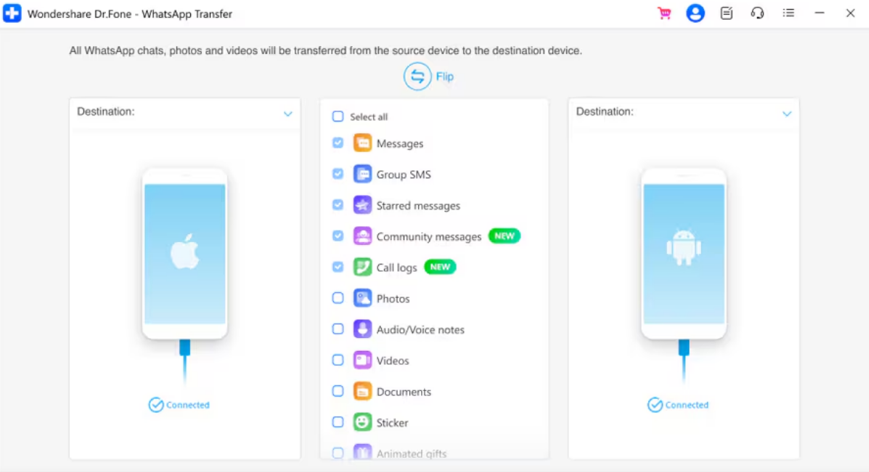
Upon accessing the “Toolbox” section, navigate to the “WhatsApp Transfer” feature. Afterward, click “Transfer WhatsApp Messages” and link both devices to the PC.
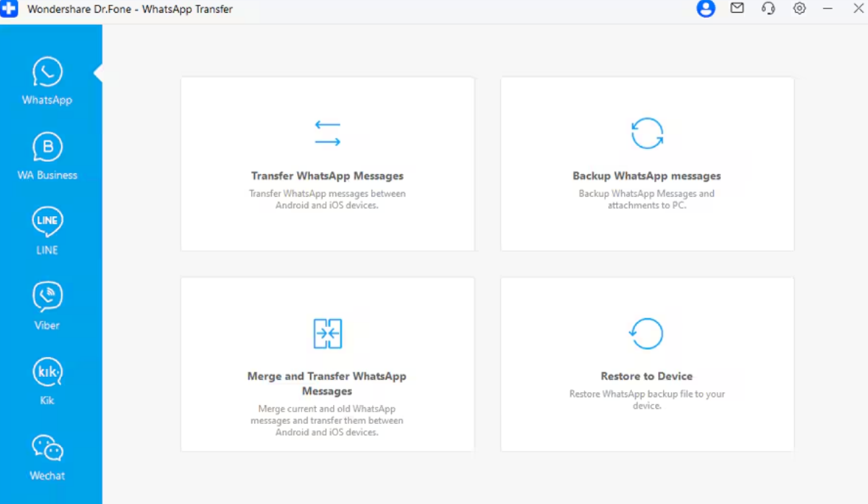
Step 2. Pick WhatsApp Data to Move
Once the source device’s WhatsApp data appears, select the preferred items or press the “Select All” option and click “Transfer.”
Step 3. Complete the WhatsApp Data Migration
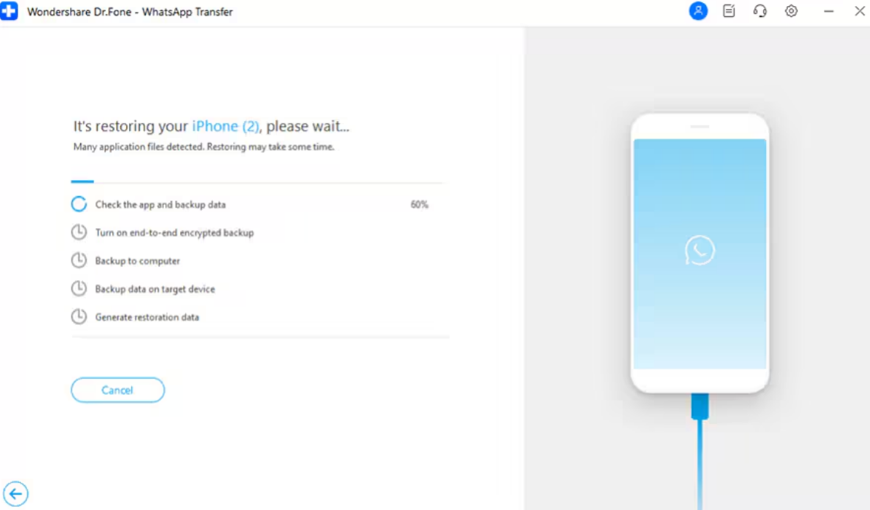
The WhatsApp Transfer tool will start encrypting and sending your chosen WhatsApp chats and media to your Android.
Conclusion
To conclude, switching WhatsApp from iPhone to Android is a complex procedure. Understanding why transfers fail helps ensure successful data migration. Each phase, from backups to verification, keeps data secure during the migration. Following these guidelines helps minimize the risk of missing files. When manual methods are insufficient, utilities like Dr.Fone – WhatsApp Transfer provide an automated alternative.

No comment