
How to Take Screenshot in Laptop: Easy Keyboard Shortcut Guide
-
 by
- in Laptops

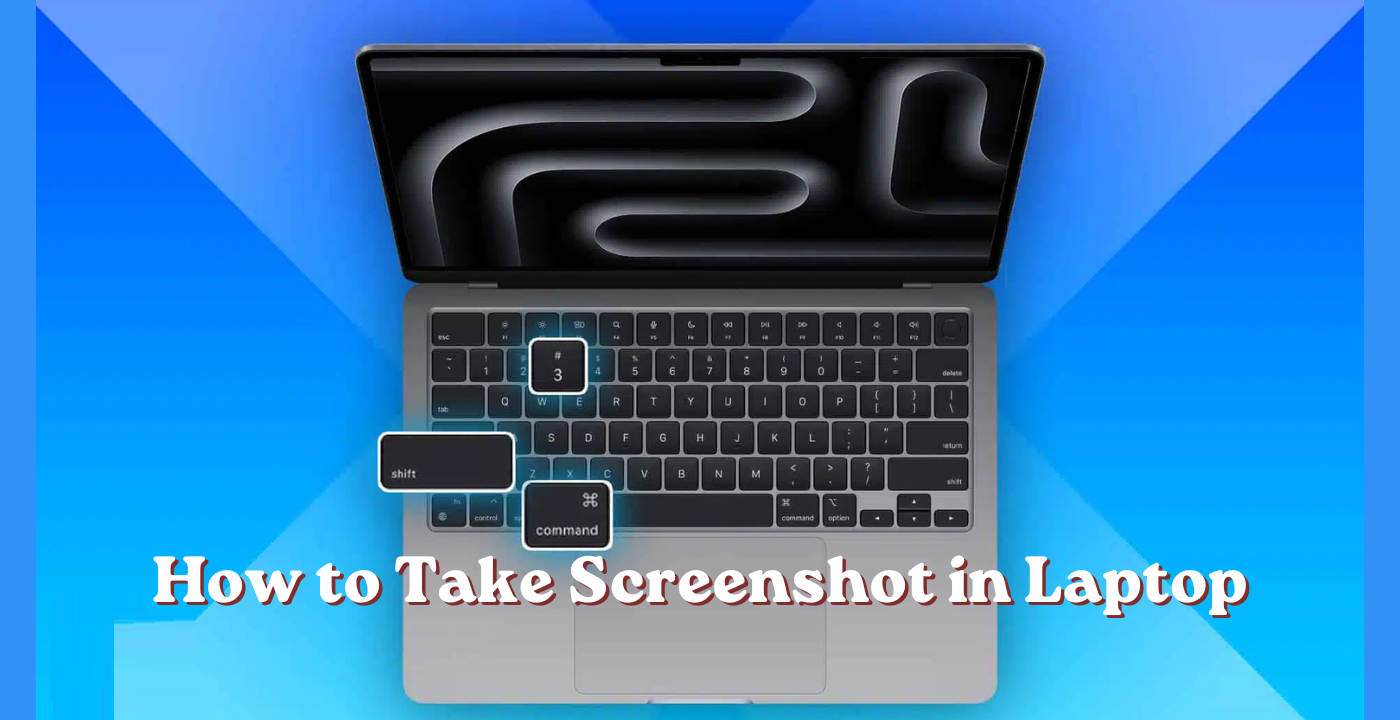
One of the easiest ways to take a screen shot and share it with friends is to use this technique. If you need to save a particular chat, an important error message, or a tutorial, you can save a ton of time knowing how to take a capture of the screen in a laptop. The bright side is that there’s no additional software required.
Everyone has some keyboard shortcuts for this in their laptop, regardless of whether it’s a Mac or Windows machine. This guide will show you the simplest way to HP, Dell, Lenovo, Asus, Acer, and Apple Macbook laptop.
When Should You Screen Shot a Laptop?
Screen shots are useful as often as you think they might be. Whether it’s to report a bug, save a receipt, share a fun message or create a step-by-step guide for someone else, you’ll need one. Rather than verbally describing what you see on your screen, a screenshot depicts the screen’s actual appearance, thereby making communication quicker and clearer.
How to Take Screenshot in Laptop: Windows Users
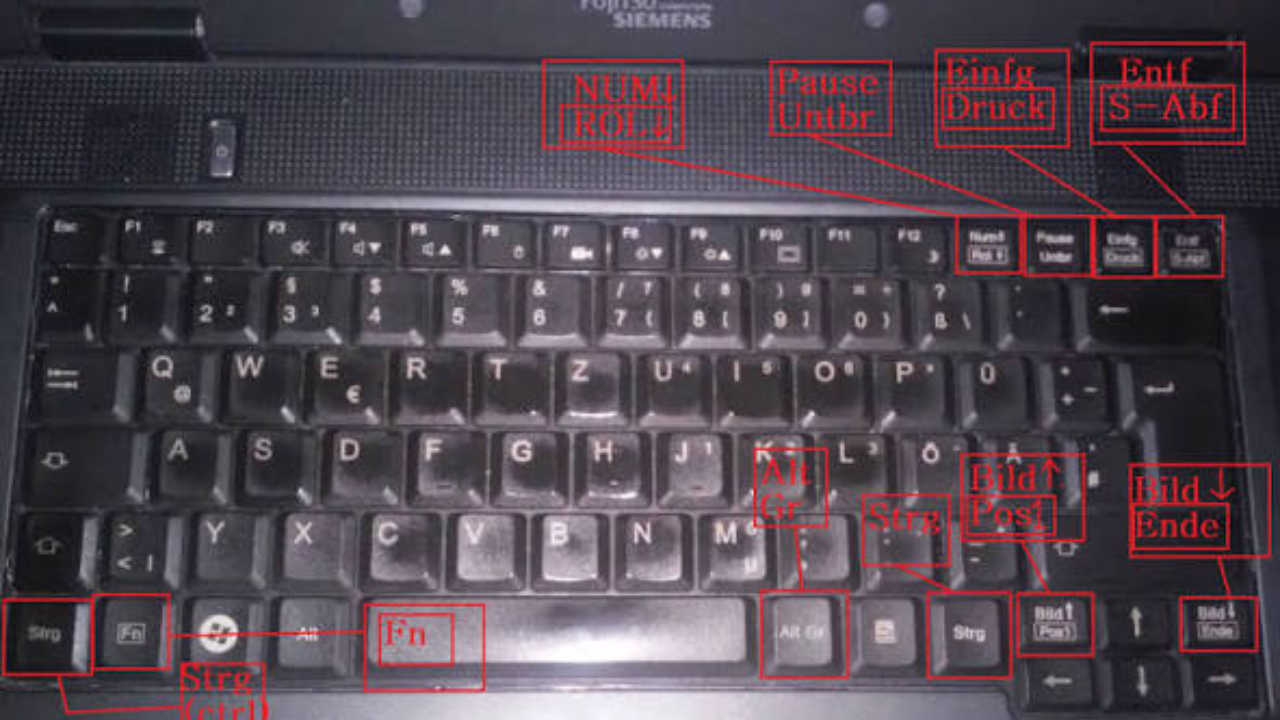
Whether it’s a Dell or a HP Windows laptop, the majority provide the same set of shortcuts. We’ve simplified the steps below for the more popular laptop brands so you can follow along easily.
HP Laptop Screenshot
Full Screenshot: Press Windows + PrtScn. The picture will be automatically saved as a PNG image in your Pictures folder.
Active Window Screenshot: Press Alt + PrtScn to take a screenshot of the window that you’re focused on. This will copy the picture to your clipboard and you can open Paint or another image editor and press Ctrl + V to paste and save it.
Custom Selection Screenshot: Press Windows + Shift + S to open the snipping overlay. Click and drag to choose the region you wish to copy, and paste it into an editor to store.
Dell Laptop Screenshot
Dell laptops have the same shortcuts as HP. Take a full screen shot with Windows + PrtScn or by pressing Windows + Volume Down (only for Dell tablets). To take a screenshot of a single window, press Alt + PrtScn and for a selected area, press Windows + Shift + S.
Lenovo Laptop Screenshot
Lenovo laptops are no exception. To capture the entire screen, press Windows + PrtScn. To capture the active window, press Alt + PrtScn. To capture a specific region, press Windows + Shift + S.
Asus Laptop Screenshot
The shortcuts are the same on Asus laptops, Windows + PrtScn for a full screen shot, Alt + PrtScn for a window, or Windows + Shift + S to capture a part of the screen.
Acer Laptop Screenshot
Also, Acer laptos supports the standard Windows shortcuts. Press Windows + PrtScn for a full screen, Alt + PrtScn for only the active window or press Windows + Shift + S to take a snip of a specific portion of the screen.
How to Take a Screenshot on a MacBook
The process is the same with Apple laptops, but they have different keys.
Take a full screen screenshot: press Shift + Command + 3. The screen shot is automatically saved to your desktop.
Take a screen shot: Press Shift + Command + 4 then drag your cursor to the area you want to take a screen shot of. It’s copied straight to your clipboard.
Specific Window Screenshot: Hold down Shift + Command + 4 and press the Space bar. When your cursor is a camera, click on the window that you wish to capture.
Additional Tools to Capture Your Screen
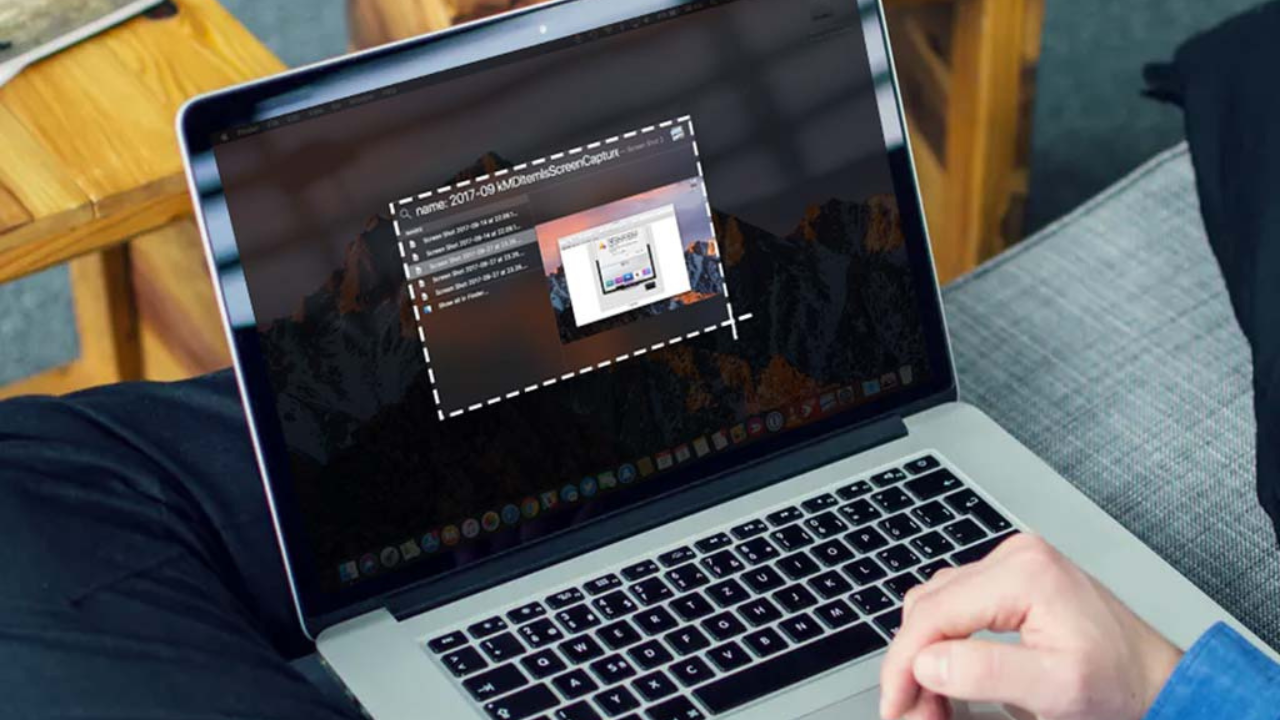
If you desire more control over your screenshots, there are a couple of built-in and free tools that will help you out.
Snipping Tool: This is a classic Windows tool that can be used to capture: free form shape, rectangle or full screen. Click on it in the Start menu and drag to define your region.
Snip & Sketch: A more modern version of the Snipping Tool. After opening with Windows + Shift + S, select your type of snip (rectangular, freeform, window, or full screen) and the image is copied to your clipboard.
Lightshot: A free third-party app for Windows and Mac, called Lightshot. Once installed, press PrtScn, select the area, and mark up, save or send the screenshot in no time using the integrated editor.
Final Word
There is no need to be confused or intimidated when it comes to taking a screen shot of a laptop. A simple keyboard shortcut is all it takes, regardless of whether you’re using a Windows laptop from HP, Dell, Acer, Lenovo or Asus or an Apple MacBook. For greater freedom, there’s also the Snipping Tool, Snip & Sketch, and Lightshot which offer additional editing capabilities. Give the shortcut that’s ideal for your laptop a try and you’ll be capturing your screen like a pro in no time.
FAQs
1.How to take a screenshot on a laptop without any tool?
Simply use a keyboard shortcut. In Windows, hit Windows + PrtScn to take a full screen picture, which is saved to your pictures folder.
2.What is the shortcut to take a screen shot on a Dell Laptop?
To capture the whole screen use the shortcut Windows + PrtScn. For Dell tablets, press Windows + Volume Down. Both save the picture automatically as a PNG image in the pictures folder.
3.How do I take a screen shot of just a portion of my screen?
On Windows, press Windows + Shift + S to bring up the snipping overlay and draw the rectangle. To drag a region on MacBook, press the Shift key, Command key, and drag over the region.
4. Where are my laptop screenshots saved?
When using Windows + PrtScn to take a screenshot, it automatically saves the image to Pictures > Screenshots.
5. Can I capture the image of a single window?
Yes. Pressing Alt+PrtScn will only snap the current window on Windows. MacBook: Hit Shift + Command + 4, then Space, then click on the window you want to take a screenshot of.
Read More: Call Conversion Optimization: How to Turn Phone Leads Into Customers in 2026

No comment