
MacBook Pro Orange Screen: What’s Causing It and How to Fix It
-
 by
by
- in Tablet Phone


Nothing ruins your day like opening your MacBook and seeing an orange spot staring back at you. Maybe it started small, maybe it showed up overnight, but either way it is annoying and you want it gone. The good news is that not every orange screen means your laptop is toast. Some issues are easy to sort out at home, while others need a trip to the repair shop. Let us break it down in plain terms so you know exactly what you are dealing with.
What Causes Orange Spots on a MacBook Pro Screen
There are a few different reasons your screen might turn orange, and figuring out which one applies to you makes all the difference.
Pressure damage is the most common culprit. If you carry your MacBook in a backpack with heavy books, a camera, or even a water bottle pressing against the lid, that weight slowly compresses the LCD layers inside the screen. Over time this shows up as orange or yellowish smudges. It also happens when people close the lid on a cable, a pen, or an earbud and forget about it. The screen looks fine at first, but the damage builds up and eventually those orange patches appear.
Heat is another big one. MacBooks can run hot, especially during video editing, gaming, or when you use them on a bed or couch that blocks the air vents. When the internal temperature stays high for too long, the heat can discolor the thin films inside the display assembly. You will usually see orange or brownish patches in the areas that get the hottest, and they tend to spread if you do not change your habits.
Some MacBook Pro models, especially the 2016 to 2018 versions, had display issues straight from the factory. In these cases the orange spots are not your fault at all. The LCD panel, backlight, or adhesive inside the screen starts failing on its own, and users often notice the discoloration within a year or two of buying the machine. If your MacBook has never been dropped, spilled on, or squeezed in a bag and the spot still showed up, a hardware defect is very likely.
Liquid damage is sneakier than people think. You do not need to dump a full cup of coffee on your keyboard for it to reach the screen. Even a small splash can seep into the display layers and leave a stain that looks orange or yellow. The frustrating part is that the spot might not show up right away. It can take days or even weeks for the liquid to work its way through and create visible damage.
Dead or stuck pixels can also look like tiny orange dots. These are less common but they do happen, especially on older displays. A stuck pixel stays one color no matter what is on your screen, while a dead pixel usually looks black. If your orange spot is just one tiny dot that never moves, a pixel issue could be the cause.
Finally, do not rule out surface problems. A cheap screen protector, trapped dust, or an air bubble can make it look like there is damage underneath when really it is just sitting on top. Before you panic, peel off any protector and give the screen a proper wipe.
How to Fix the MacBook Pro Orange Screen
Now that you know what might be causing it, here is what you can actually do about it.Start with the simplest stuff. Tilt your screen forward and backward to see if the orange spot changes or fades. If it does, that is a strong sign of pressure damage. It will not fix the problem permanently, but it tells you what you are working with. Next, clean the screen properly. Turn your MacBook off, unplug it, and use a soft microfiber cloth slightly dampened with water. Wipe gently in circular motions. Do not press hard. If the spot is just dirt or a smudge on the surface, it will disappear.

If heat is the suspect, get yourself a laptop cooling pad and start using it during heavy tasks. Also move your MacBook to a hard, flat surface so the vents can breathe. Avoid direct sunlight and hot cars. Keeping the temperature down will not reverse existing damage, but it will stop things from getting worse.
For stuck pixels, there are free online tools that flash different colors rapidly across your screen. The idea is to jolt the pixel back to normal. Run one of these tools for about ten to fifteen minutes and see if the dot clears up. It does not always work, but it is worth trying before you spend money on repairs.
If you have an Apple Silicon Mac running macOS Sonoma 14.1 or later, you can run Apple built in diagnostics. Hold the power button until you see Loading startup options, then press Command and D together to enter diagnostic mode. This will tell you whether the issue is a software glitch or actual hardware failure. If the test flags a display problem, you will have solid proof when you contact Apple or a repair shop.
You can also check your display settings. Go to System Settings, then Displays, and turn off Night Shift and True Tone. Try switching the color profile to sRGB IEC61966 2.1. Sometimes what looks like an orange spot is just a color calibration issue, and changing these settings makes it vanish completely.
For older Intel MacBooks, resetting the NVRAM and SMC can clear up weird display behavior. Restart your Mac and hold Option, Command, P, and R for about twenty seconds. For SMC resets the steps vary by model, so check Apple support page for your specific machine. These resets will not fix physical damage, but they can solve firmware-related color issues.
When You Need a Screen Replacement
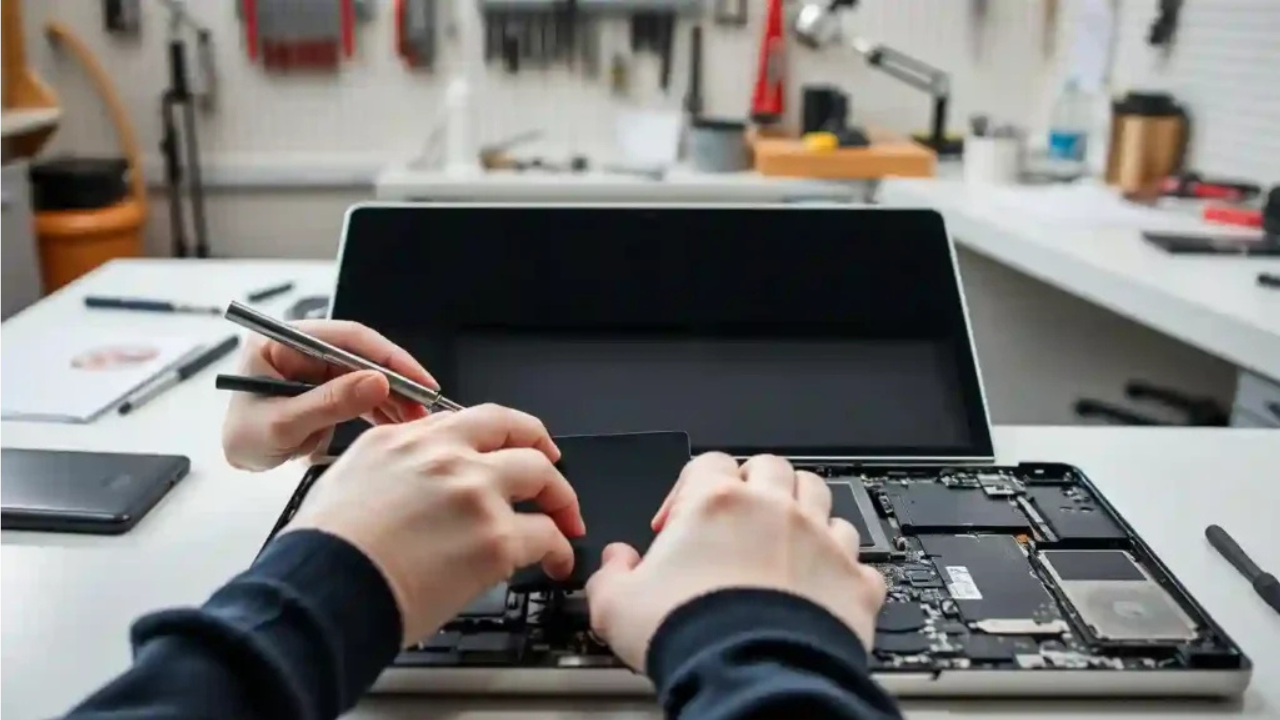
If none of the quick fixes is successful, and the orange spot remains, it means that the LCD panel has been damaged and it is necessary to replace the LCD panel. Here are your options.
Bring the MacBook to Apple if its covered by warranty or AppleCare plus. Typically, the manufacturer will refund the purchase price for manufacturing defects. Out of warranty, Apple repair quality is top-notch and they provide original parts. Know that out-of-warranty screen replacements can range from four-hundred to eight-hundred dollars, depending on the model.
Third party repair shops are typically less expensive, and sometimes much less expensive. The downside is that this means that by using a non Apple provider, the warranty is extinguished. If you do, research it. Check out reviews, ask about parts used and experience with Macs. A replacement screen may not look as good as the original orange one.
The Apple Self Service Repair program allows for ordering of genuine parts and tools directly if you are comfortable working on the electronics. This is the most cost-effective possibility in the event that you already have the skills, however a single error can make a simple swap into a costly error. Do not do this unless you are sure of your actions.
How to Prevent Orange Screen Issues
The ultimate solution is to prevent the problem. Take care of your MacBook. Do not close the lid on cables, pens or anything. If it is carried in a bag, ensure that there is no load on the screen. Put it in a padded laptop sleeve and never stack it on a pallet or shelf so that it is leaning on other things.
Keep it cool. Place MacBook on firm, flat surfaces with ventilation. Avoid placing it in a hot car or in the sun. For those doing heavy jobs, such as video editing or playing games, a cooling pad may be a good option or download software such as Macs Fan Control that will help regulate temperatures.
Regularly clean the screen with a soft microfiber cloth. Over time dust and debris can creep into the display. Also, make sure to keep the keys area clean as dirt on the keyboard can rub off and onto the screen when closing the keyboard.
Be aware of early warning signs. Don’t ignore any slight signs of colouration forming. Prevention is the key to avoiding a major problem when a small spot occurs. Change your way of doing things, run diagnostics and seek professional advice if it is necessary to avoid further damage.
Final Word
It can be annoying to see an orange screen on your MacBook Pro but it does not always mean it’s the end of the world. Do the basic things first such as cleaning, making some adjustments and checking for heat problems. Continue running diagnostics if the spot doesn’t go away, and see if a warranty claim or professional repair is appropriate. Take care of your MacBook, maintain its temperature and regularly clean it to minimize the risk of this problem happening at all.
Why is there an orange screen on the MacBook Pro?
They are most likely to be caused by pressure damage, heat exposure, or hardware defects. Less frequently it is caused by liquid damage or stuck pixels.
Does the orange spot come with a warranty?
Apple will typically replace the display free of charge if it’s due to a manufacturing defect and the MacBook is still under warranty or AppleCare plus. Damage caused by drops, pressure or liquid is covered as an accident and is not insured.
Do I need to get a specialist to repair the orange screen?
Make an attempt with cleaning, setting up and using pixel unsticking tools. If the LCD panel is physically broken, however, then you will have to get it fixed professionally or replaced with a new screen.
What is the cost of repairs?
Frequently, out-of-warranty screen replacements at Apple cost anywhere between four hundred and eight hundred dollars. Third-party retailers might offer lower prices, and parts from Apple’s Self Service Repair program can be two to five times the cost of tools.
What if the orange spot keeps growing?
If the spot is spreading, discontinue use of the MacBook and back up data ASAP. As the growing discoloration increases, the damage is also worsening. Bring it to a repair shop as soon as possible to prevent the whole display from going haywire.
Read More: Crypings.com: A Complete Guide for 2026

No comment