
How to Fix White Spots on Phone Screen: Causes, Solutions, and Prevention
-
 by
by
- in Mobile Phone Technology

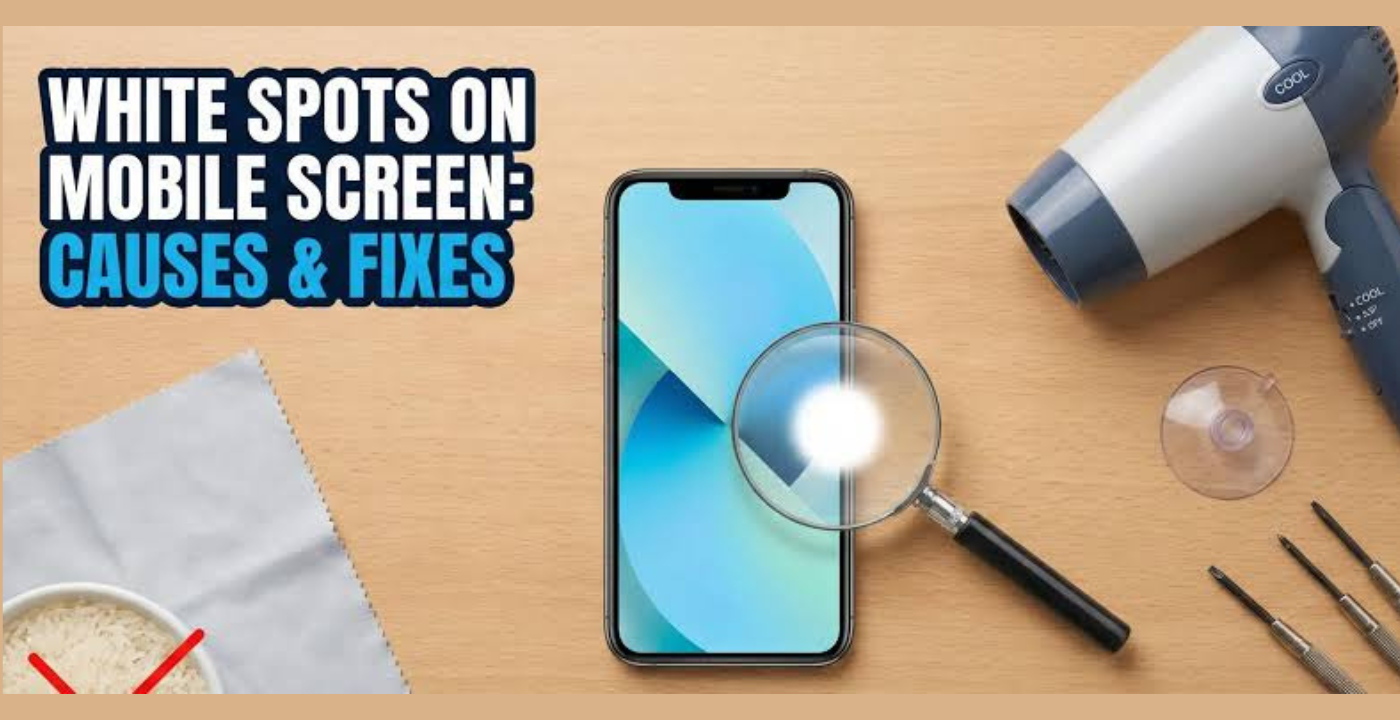
Is the screen of your phone brighter than before and there is a white spot? Can be annoying, particularly when it interferes with watching videos, surfing websites or playing games. The positive side of it is that not all white spots signify permanent damage to the phone.
There are some issues which have straightforward solutions, and others that need specialist repair. This article covers how to resolve white spots on screen of the phone, how to prevent the problem and why it occurs.
Common Causes of White Spots on Phone Screens
To resolve the issue, it is important to first know the cause.
Pressure Damage
It’s often due to physical stress on the display. This may occur when sitting on the phone, heavy objects are placed on it, or the phone is kept in the pocket in such a way that it is tightly against the body. If excessive pressure is placed on the display layers bright spots will occur.
Stuck or Dead Pixels
All pictures on your cell phone are made of pixels. Occasionally, a single pixel is locked in a particular color and a dead pixel ceases to function altogether. An area of broken pixels can show up as a white patch.
Backlight Problems
Images are created on an LCD screen by using a backlight. Bright white patches may occur if the backlighting is uneven or the backlight is separated slightly. This is generally a hardware problem that needs to be fixed.
Water or Moisture Damage
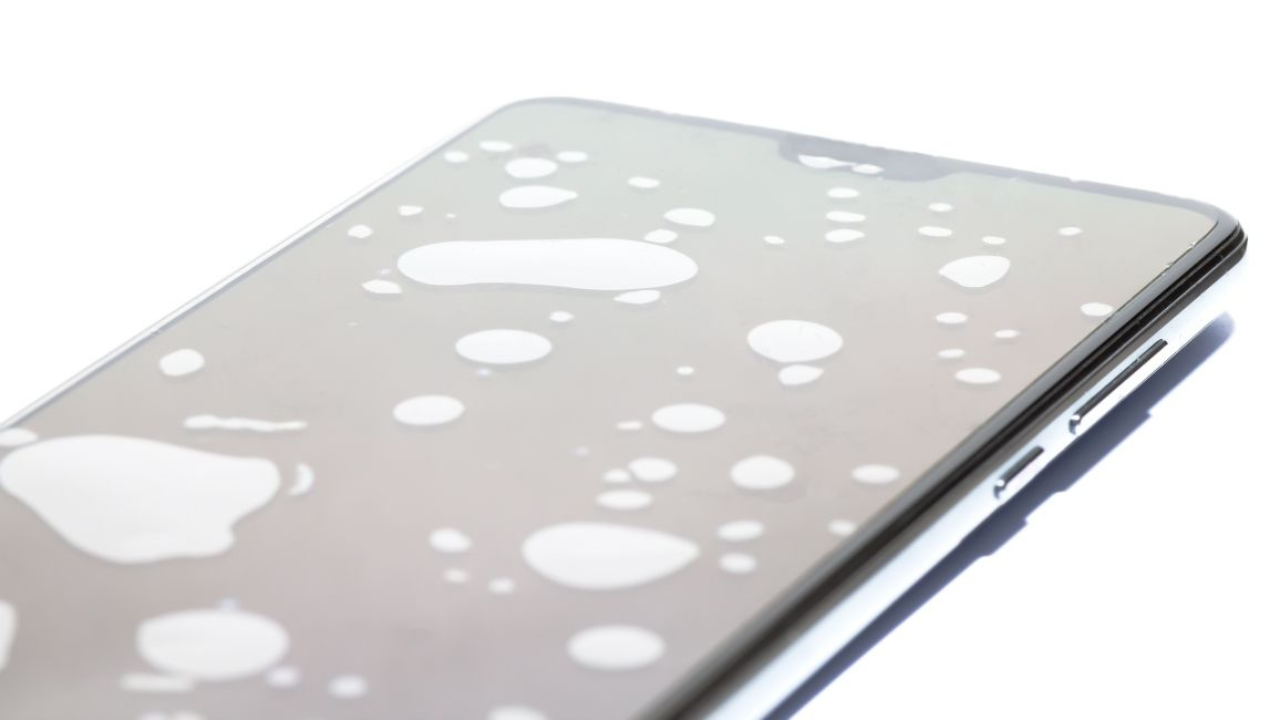
Just a drop of water in the phone can impact the display. Water can cause the layers of the screen to become damaged and/or cause pressure points that appear white.
Manufacturing Defects or Aging
There are some phone companies that have problems with their screens due to factory defects. Another cause of white spots in older devices is the degradation of internal components of the device over the course of several years.
How to Diagnose the White Spot Problem
Take a few minutes prior to attempting a repair to determine the cause of the problem.
- Try turning the phone on and off to see if the white spot is still present.
- Look at pictures with black, white, red, green and blue backgrounds and determine whether the spot is visible in all of the colors.
- If you use a screen protector, make sure to remove it, as there can be times when the air or dirt in it looks like the screen protector.
- Look to see if the spot varies in size or brightness over time.
- Check for any physical damage, such as cracks, dents, or water damage.
If the white spot is found on all displays, it is more likely to be a display issue than software.
How to Remove White Spots From Phone Screen
Before replacing the display, there are a few techniques you can use.
Restart Your Phone
Restarting will resolve short term software issues with the display. Switch off the phone, wait for 30 seconds and switch it back on.
Install Software Updates
There are updates to the system regularly provided by phone manufacturers to improve the stability of the system. Update to the latest software version on the Android or iPhone to eliminate software display problems.
Try a Pixel Repair Tool
There is a trusted application for doing pixel repair if you suspect there is a stuck pixel. These applications will quickly switch the screen colours to stimulate the stuck pixels to return to normal operation. They don’t work for all situations, but they are easy and free to use and worth a try.
Reduce Pressure on the Screen
If the white spot is there because of the pressure on the phone, don’t press on the display again. Unplug any restrictive case that could be placing pressure on the screen. If you keep pressing on it, it will get worse.
Let the Phone Dry
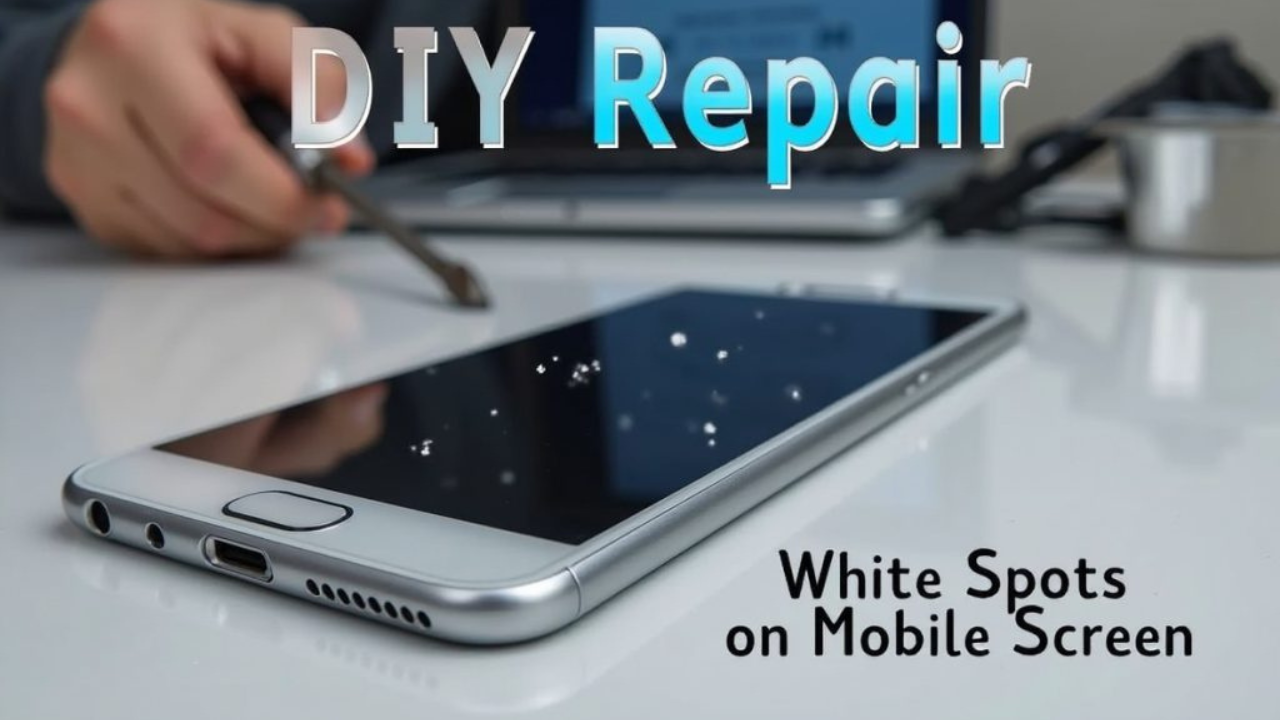
If it is caused by moisture, quickly shut off the phone. If possible, take out the SIM card and let it dry in a well-ventilated area. Do not use a hair dryer or heat the phone excessively, as this can harm the phone’s internal components.
Replace the Screen
If none of the above methods helps, the display may be permanently damaged. If so, it is usually best to replace the display. Only the display may need replacement, or other internal components may be damaged as well, a certified repair technician will know for certain.
When you notice white spots on the phone screen due to pressure damage or backlight failure, it’s likely best to get the screen replaced professionally.
Final Word
When white spots appear on a phone screen, they can be alarming, but not necessarily indicative of a phone that’s beyond repair. Some of the most common causes include pressure damage, stuck pixels, backlight problems, moisture, and aging displays. Begin with basic troubleshooting steps like restarting your phone, software updates, and using a pixel repair tool. If your problem continues, you may require professional repair or replacement of your screen.
With the knowledge of how to fix white spots on a phone screen, you’ll be able to act promptly before the problem escalates. If you are able to diagnose the issue with your display early, and take proper care of it, you can keep your phone running as you expect and have a clear display all the time.
FAQs
1.Are there any ‘natural’ remedies for clearing the white spots from a phone screen?
Sometimes. If it is a temporary software glitch or minor stuck pixel, it could go away once the device is restarted or if a pixel repair tool is used.
2.Is there a software/hardware problem causing white spots?
Most white spots are caused by hardware issues like pressure damage, backlight failure, moisture or display quality.
3.Is it possible to repair a stuck Pixel without replacing the screen?
Yes. Stuck pixels can be fixed by a pixel repair application or by repeating the color cycle. Typically, dead pixels and physical damage to the screen involve replacing the screen.
4.Will white spots be completely gone after screen replacement?
Yes, if the white spots are due to damage to the display. Removal of the screen will repair the faulty screen and allow for the restoration of normal image quality.
Read More: How to Stop Phone from Overheating: Your Complete Guide to Fix It Simply

No comment